Usage
The interface
Daggermap keeps the background (your battlemap) front and center and pushes controls to the edges:
- Menu is always top-left. Expands to Settings, Help (Hints), Open, Save, Undo, and Redo.
- Tools is a pull-out drawer along the top or bottom edge (Auto / Top / Bottom under Settings → General). Collapsed it is a thin lip; expanded it shows tabs and tool buttons.
- Hints is an optional panel listing bound actions for the current device. It sits opposite from tools, on the right side. Toggle it via the Menu.

Tools
Pull-out drawer along the top or bottom edge. Collapsed it is a thin lip; expanded it shows tabs and tool buttons.
Hints
Optional overlay listing bound actions. Title is Controls on desktop and Gestures on mobile.

Tools
Pull-out drawer along the top or bottom edge. Collapsed it is a thin lip; expanded it shows tabs and tool buttons.
Hints
Optional overlay listing bound actions. Title is Controls on desktop and Gestures on mobile.
Menu
The top-left Menu button (tooltip: Menu) opens a compact icon panel.
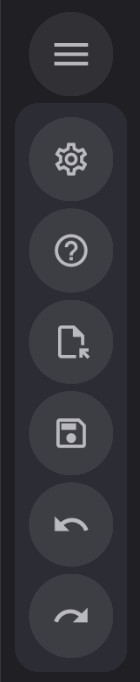
| Icon | Button | In-app label | What it does |
|---|---|---|---|
|
Settings | Settings | Opens the Settings modal |
|
Help | Help | Toggles sticky Action Hints |
|
Open | Open | Open Document file picker |
|
Save | Save | Save Document As (then autosaves to that path) |
|
Undo | Undo | Undo last document change |
|
Redo | Redo | Redo last undone change |
Settings
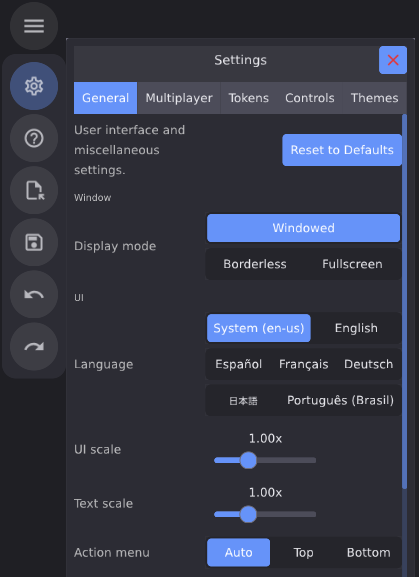
Menu → Settings opens the Settings modal. Settings is organized by tabs: General, Multiplayer, Tokens, Controls, Themes. Each tab can Reset to defaults for that tab’s settings. Each settings field has a tooltip that explains in more detail what it does.
Tools drawer
In the app this surface is labeled Tools.
Drag or tap the handle to open the Tools drawer. The Assets and Scenes tabs support resizing by dragging the handle. You can move the Tools drawer to either dock on the top or bottom from Settings → General → Action menu.
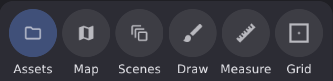
Assets
Asset library for backgrounds and tokens. Browse folders, filter thumbnails, insert tokens, or set scene backgrounds.
Map
Viewport and selection utilities: fill or fit view, tile backgrounds, clipboard actions, and token details.
Scenes
Thumbnail grid of boards in this document. Activate, add, reorder, duplicate, or delete scenes.
Draw
Combat annotation on the map. Pen colors, shapes, fog of war, snap, and clear controls.
Measure
Ephemeral distance and AoE readouts using your grid units. Strokes clear when you leave the tab.
Grid
Per-scene overlay: style, color, isometric view, adjustment handles, and snap to grid.
Assets
Set up folders for quickly adding tokens and backgrounds into the scene.

Insert Token
Places a token from this image. If a token is selected on the battlemap already, it replaces that token's image.
Set Background
Sets the active scene background to this image. If a background is already set, it replaces that background.
Insert Token
Places a token from this image. If a token is selected on the battlemap already, it replaces that token's image.
Set Background
Sets the active scene background to this image. If a background is already set, it replaces that background.
Insert Token
Places a token from this image. If a token is selected on the battlemap already, it replaces that token's image.
Set Background
Sets the active scene background to this image. If a background is already set, it replaces that background.
Insert Token
Places a token from this image. If a token is selected on the battlemap already, it replaces that token's image.
Set Background
Sets the active scene background to this image. If a background is already set, it replaces that background.
Insert Token
Places a token from this image. If a token is selected on the battlemap already, it replaces that token's image.
Set Background
Sets the active scene background to this image. If a background is already set, it replaces that background.
Insert Token
Places a token from this image. If a token is selected on the battlemap already, it replaces that token's image.
Set Background
Sets the active scene background to this image. If a background is already set, it replaces that background.
Insert Token
Places a token from this image. If a token is selected on the battlemap already, it replaces that token's image.
Set Background
Sets the active scene background to this image. If a background is already set, it replaces that background.
Insert Token
Places a token from this image. If a token is selected on the battlemap already, it replaces that token's image.
Set Background
Sets the active scene background to this image. If a background is already set, it replaces that background.
Insert Token
Places a token from this image. If a token is selected on the battlemap already, it replaces that token's image.
Set Background
Sets the active scene background to this image. If a background is already set, it replaces that background.
Insert Token
Places a token from this image. If a token is selected on the battlemap already, it replaces that token's image.
Set Background
Sets the active scene background to this image. If a background is already set, it replaces that background.
Insert Token
Places a token from this image. If a token is selected on the battlemap already, it replaces that token's image.
Set Background
Sets the active scene background to this image. If a background is already set, it replaces that background.
Insert Token
Places a token from this image. If a token is selected on the battlemap already, it replaces that token's image.
Set Background
Sets the active scene background to this image. If a background is already set, it replaces that background.
Insert Token
Places a token from this image. If a token is selected on the battlemap already, it replaces that token's image.
Set Background
Sets the active scene background to this image. If a background is already set, it replaces that background.
Insert Token
Places a token from this image. If a token is selected on the battlemap already, it replaces that token's image.
Set Background
Sets the active scene background to this image. If a background is already set, it replaces that background.
Refresh
Rescan library folders.
Add assets
Add files or folders to the library.
Active Folder Chip
Click to toggle visibility of this folder's images in the library.
Remove Folder Chip
Remove this folder from the library.
Inactive Folder Chip
Click to toggle visibility of this folder's images in the library.
Remove Folder Chip
Remove this folder from the library.
Item size
Thumbnail scale for the library grid.
Filter
Text filter over library names. Matches against file and folder labels in the grid.
Folder header
Tap the header to collapse or expand the folder.
Add all tokens
Add every image under this library folder as tokens into the scene.

Insert Token
Places a token from this image. If a token is selected on the battlemap already, it replaces that token's image.
Set Background
Sets the active scene background to this image. If a background is already set, it replaces that background.
Insert Token
Places a token from this image. If a token is selected on the battlemap already, it replaces that token's image.
Set Background
Sets the active scene background to this image. If a background is already set, it replaces that background.
Insert Token
Places a token from this image. If a token is selected on the battlemap already, it replaces that token's image.
Set Background
Sets the active scene background to this image. If a background is already set, it replaces that background.
Insert Token
Places a token from this image. If a token is selected on the battlemap already, it replaces that token's image.
Set Background
Sets the active scene background to this image. If a background is already set, it replaces that background.
Insert Token
Places a token from this image. If a token is selected on the battlemap already, it replaces that token's image.
Set Background
Sets the active scene background to this image. If a background is already set, it replaces that background.
Insert Token
Places a token from this image. If a token is selected on the battlemap already, it replaces that token's image.
Set Background
Sets the active scene background to this image. If a background is already set, it replaces that background.
Insert Token
Places a token from this image. If a token is selected on the battlemap already, it replaces that token's image.
Set Background
Sets the active scene background to this image. If a background is already set, it replaces that background.
Insert Token
Places a token from this image. If a token is selected on the battlemap already, it replaces that token's image.
Set Background
Sets the active scene background to this image. If a background is already set, it replaces that background.
Insert Token
Places a token from this image. If a token is selected on the battlemap already, it replaces that token's image.
Set Background
Sets the active scene background to this image. If a background is already set, it replaces that background.
Refresh
Rescan library folders.
Add assets
Add files or folders to the library.
Active Folder Chip
Click to toggle visibility of this folder's images in the library.
Remove Folder Chip
Remove this folder from the library.
Inactive Folder Chip
Click to toggle visibility of this folder's images in the library.
Remove Folder Chip
Remove this folder from the library.
Item size
Thumbnail scale for the library grid.
Filter
Text filter over library names. Matches against file and folder labels in the grid.
Folder header
Tap the header to collapse or expand the folder.
Add all tokens
Add every image under this library folder as tokens into the scene.
Map
Viewport and selection utilities for the current scene.
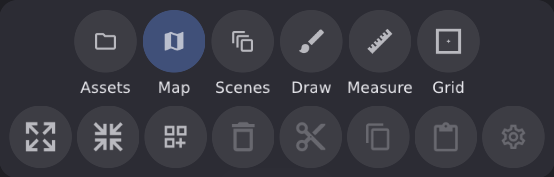
Fill View
Fill the viewport with the background image.
Fit View
Refit the viewport to content bounds.
Tile Background
Repeat a still background across the infinite canvas (disabled for video backgrounds).
Delete
Delete selected token(s) and/or drawing(s) (tooltip reflects what is selected).
Cut
Cut selected token(s) to the clipboard.
Copy
Copy selected token(s) to the clipboard.
Paste
Paste token(s) from the clipboard (paste spirals from viewport center onto a clear cell).
Token Details
Inspector for the single selected token (name, size, lock aspect, custom fields).
Scenes
A document holds many scenes. Tap any scene to activate it.
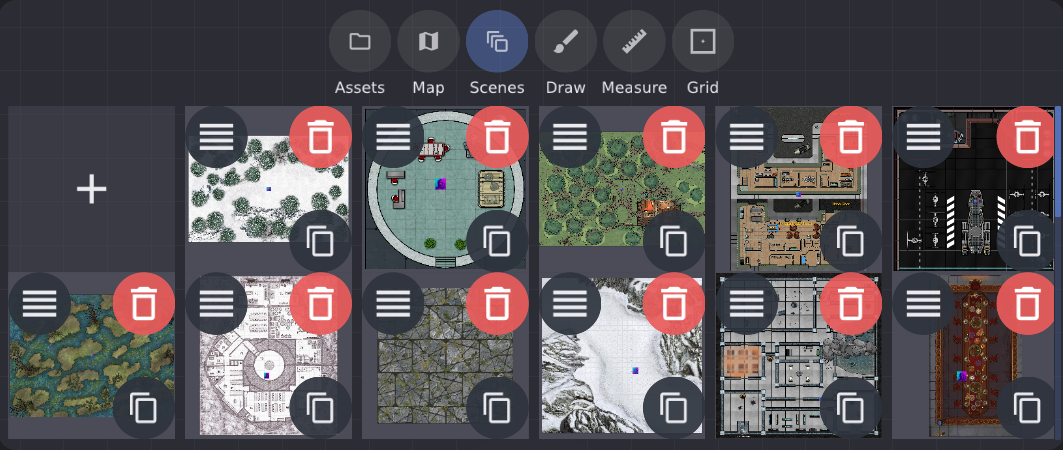
Add Scene
Creates a new empty scene.
Scene tile
Tap a tile to activate that scene.
Reorder Scene
Drag handle to reorder scenes in the document.
Delete Scene
Delete this scene.
Duplicate Scene
Duplicate this scene.
Draw
Combat annotation on the map (under tokens by default). Opening Draw turns Draw Mode on and Measure off.
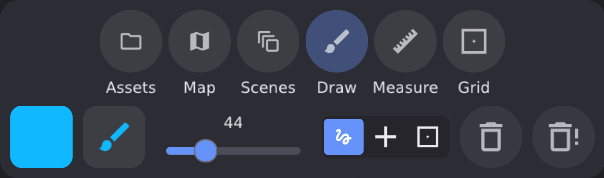
Outline Color
Stroke color for draw shapes.
Draw Shape
Shape picker: Freehand, Rectangle, Cone, Line, Circle.
Line Size
Stroke thickness for draw shapes.
Snap Mode
Free (no snapping), Vertex (intersection), or Cell (center).
Clear My Drawings
Undoable clear of your drawings only.
Clear All Drawings
Undoable clear of everyone's drawings on the map.
Measure
Ephemeral distance and AoE readouts using Settings → General → Grid units. Opening Measure turns measure on and Draw Mode off.
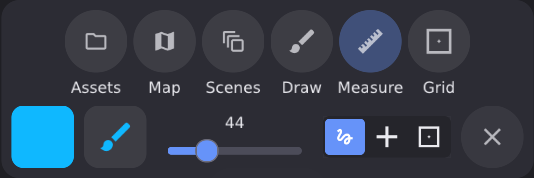
Outline Color
Stroke color for measurement shapes.
Draw Shape
Shape picker: Freehand, Rectangle, Cone, Line, Circle.
Line Size
Stroke thickness for measurement shapes.
Snap Mode
Free (no snapping), Vertex (intersection), or Cell (center).
Close
Exit the measurement tool.
Measure strokes clear when you leave the tab or close the tool; they are not permanent drawings.
Grid
Per-scene overlay and alignment for tokens and draw tools.
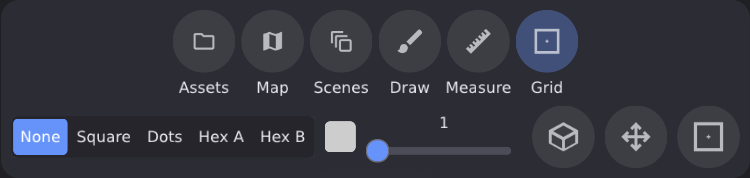
Style
None (hide), Square, Dots, Hex A (flat-top columns), or Hex B (pointy-top rows).
Grid Color
Grid line color (with alpha).
Line Size
Grid line thickness.
Isometric View
Toggle the active scene between top-down and isometric projection (grid, tokens, and draw tools follow).
Grid Adjustment Handles
Show or hide on-map Grid size and Grid origin handles; drag them to align the overlay with your art.
Snap to Grid
Snap tokens and shapes to the grid on drop / place.
If Auto-detect grid is on in General Settings, Daggermap will Style to None when an embedded grid is detected in the background.
Occasionally, automatic grid detection will be incorrect or not detect an embedded grid if it is visually subtle. You'll then need to enable Grid Adjustment Handles and drag the origin handle on the top-left of the background to align with the origin point of your grid, then drag the size handle on the bottom-right of the background to align the internal grid with your background.